
Quick Guide to Setup & Case Submission with Tractor Beam (beta)
Tractor Beam is a Windows desktop application built by BeamReaders that saves your practice time and reduces data entry errors by eliminating manual work from your imaging submission process. It automatically locates your CBCT files, attaches the files to a request form, extracts patient data, and allows you to template common submission requests for streamlined submissions to your radiologist.
Disclaimer: Tractor Beam is currently in beta
Tractor Beam is currently available as a beta software. Beta software is a near-final, pre-release version for use to gather real-world feedback, identify hidden bugs, and ensure stability before the official public launch.
Although we have extensively tested in live customer environments, you should understand that beta software, including Tractor Beam's current state, may behave unexpectedly or contain software bugs. We strongly advise you to always back up all files before and during use to prevent potential data loss or corruption. BeamReaders cannot be responsible for missing or corrupt data based on failure to follow this advice.
This article and steps below covers initial setup and best practices for getting started with Tractor Beam beta.
Last updated: July 13, 2026
Step 1: Download & Install the App
- Click “Get Tractor Beam Now.”
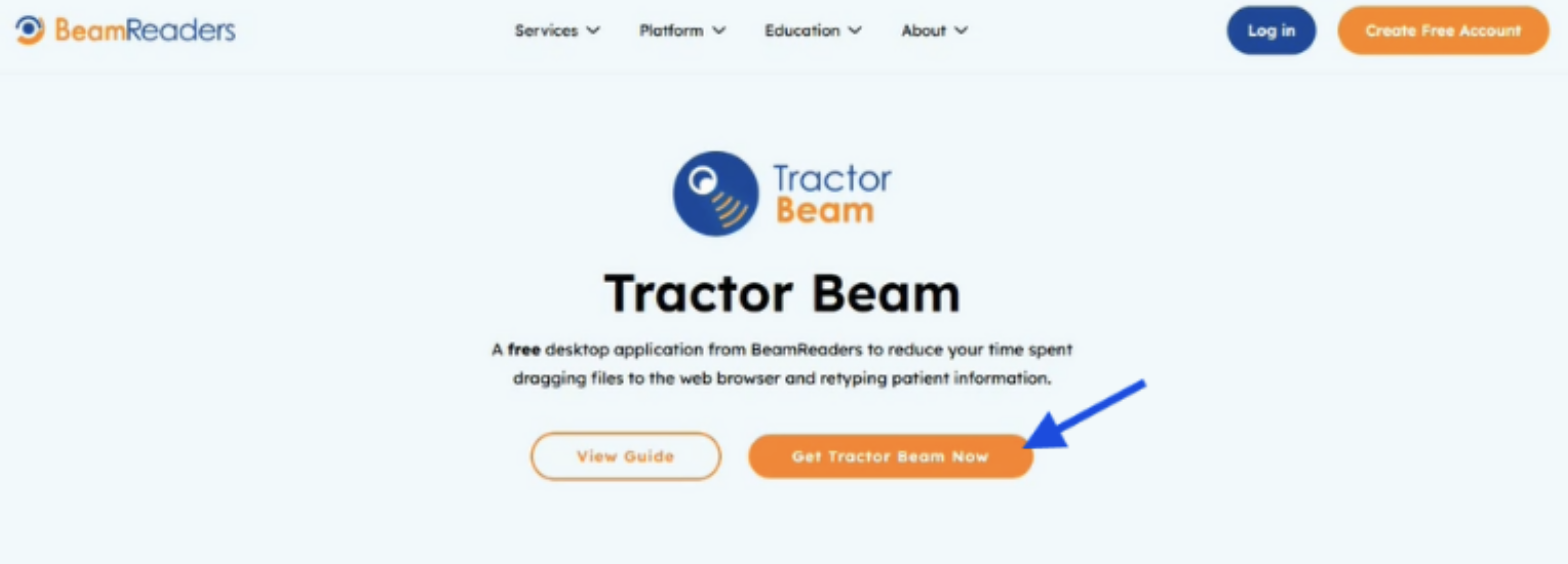
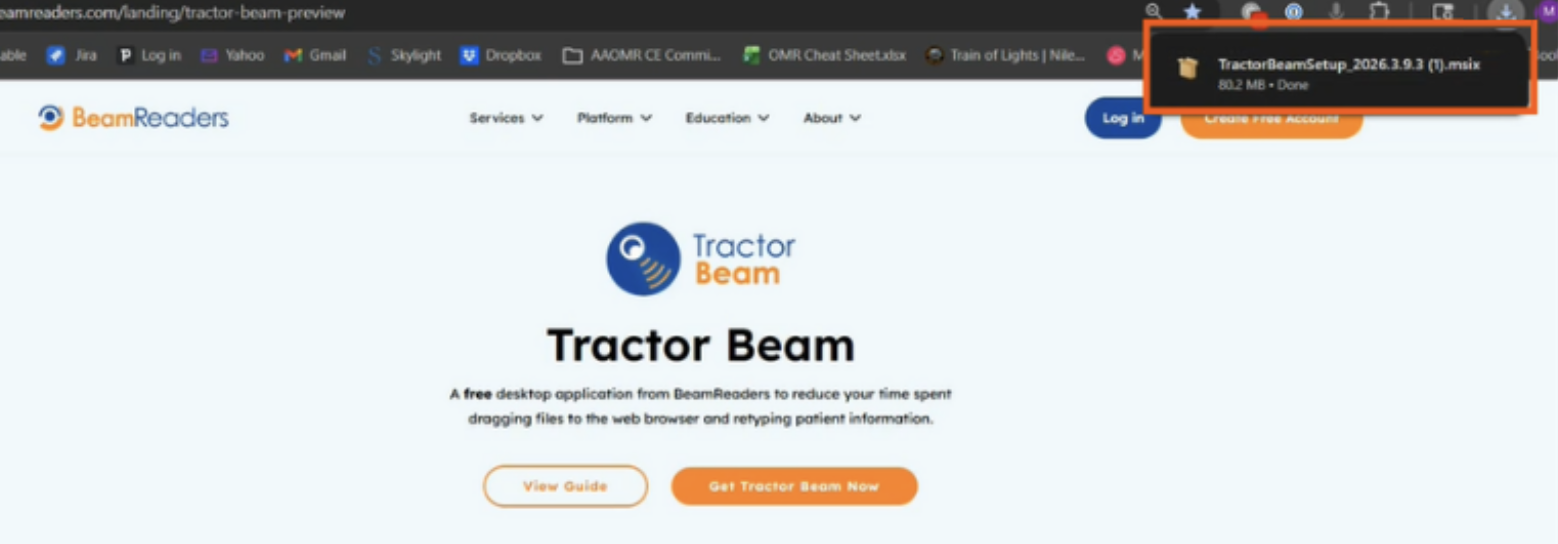
Once the file downloads:
- Click the downloaded file (or open it from your Downloads folder).
- Click "Install" in the app installation window.
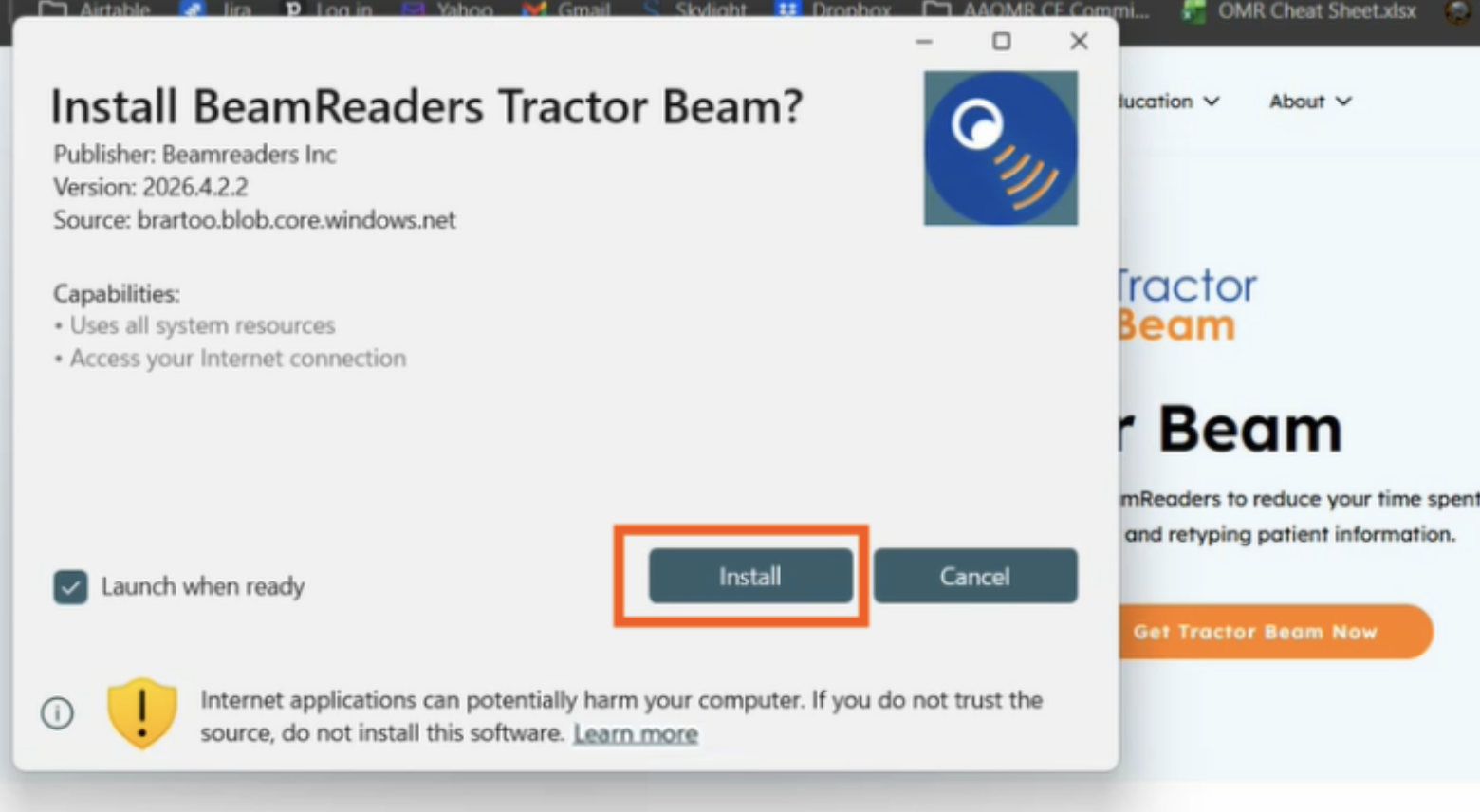
- After installation:
- You may now close your browser.
- The Tractor Beam app will open automatically.
Step 2: Log in to Your Account
- Click the gear icon to open Settings.
- Select “Account” from the menu on the left.
- Click “Log in”
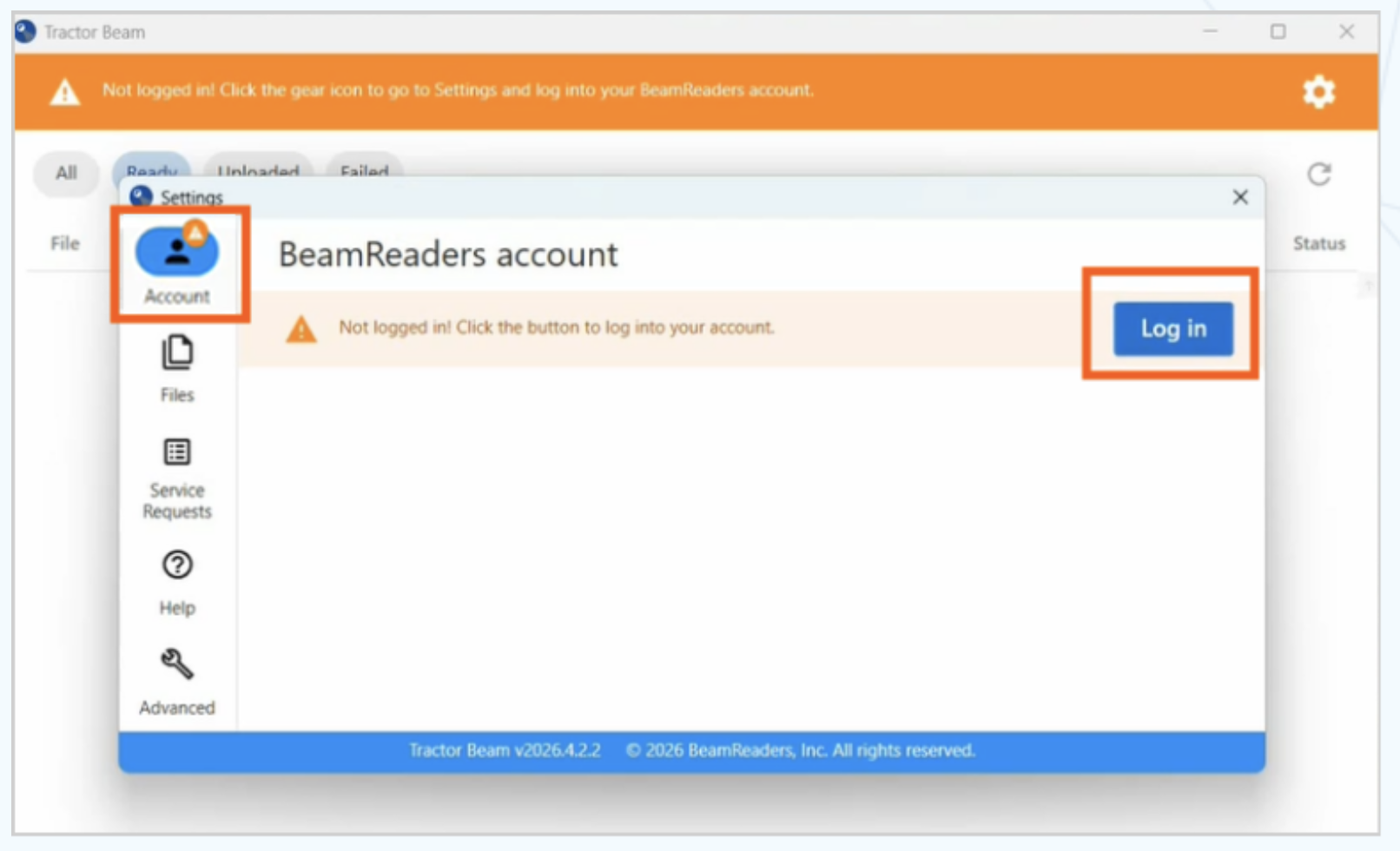
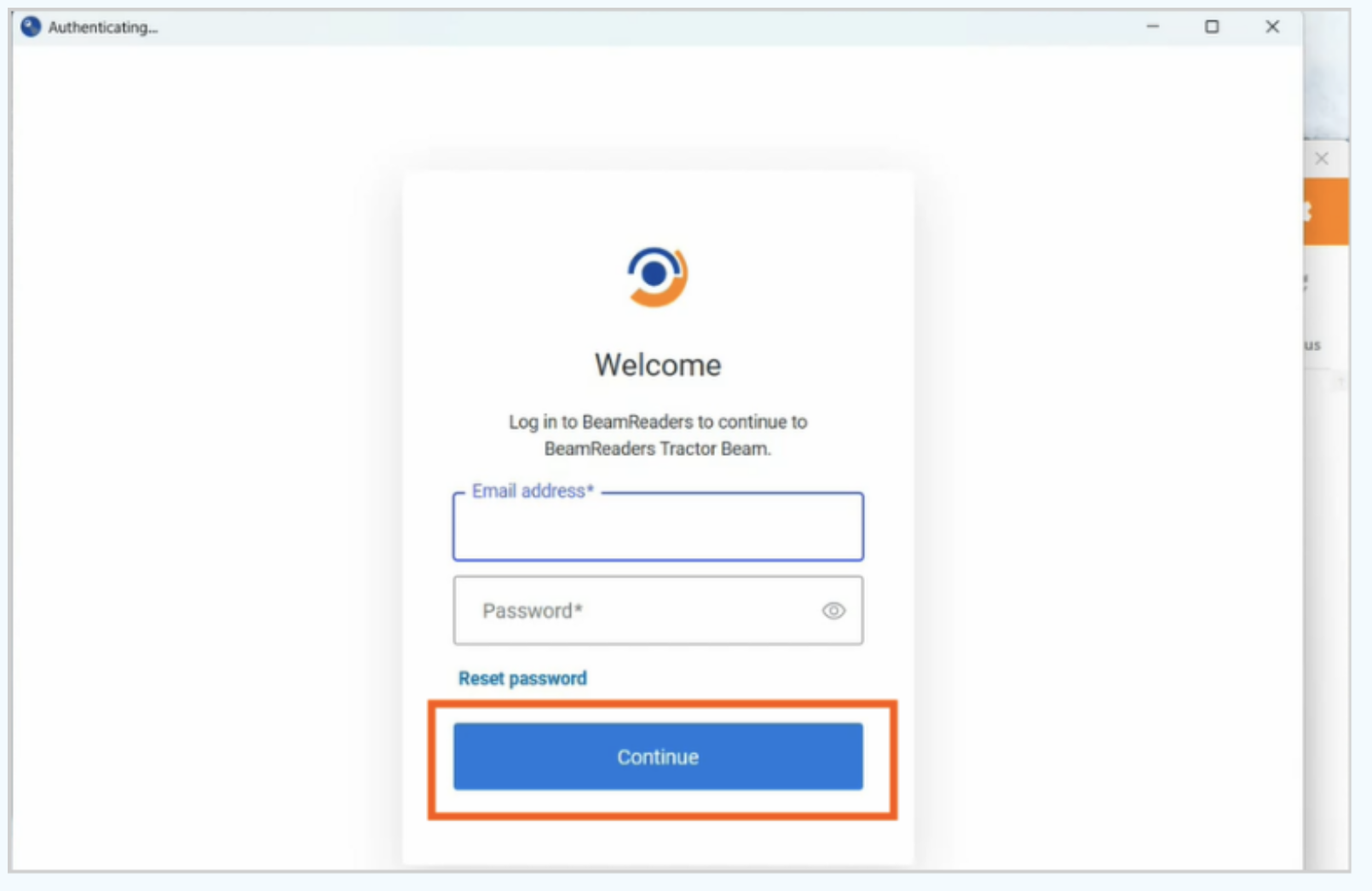
On the log in screen:
- Enter the same credentials you use for the BeamReaders website.
- Click “Continue”
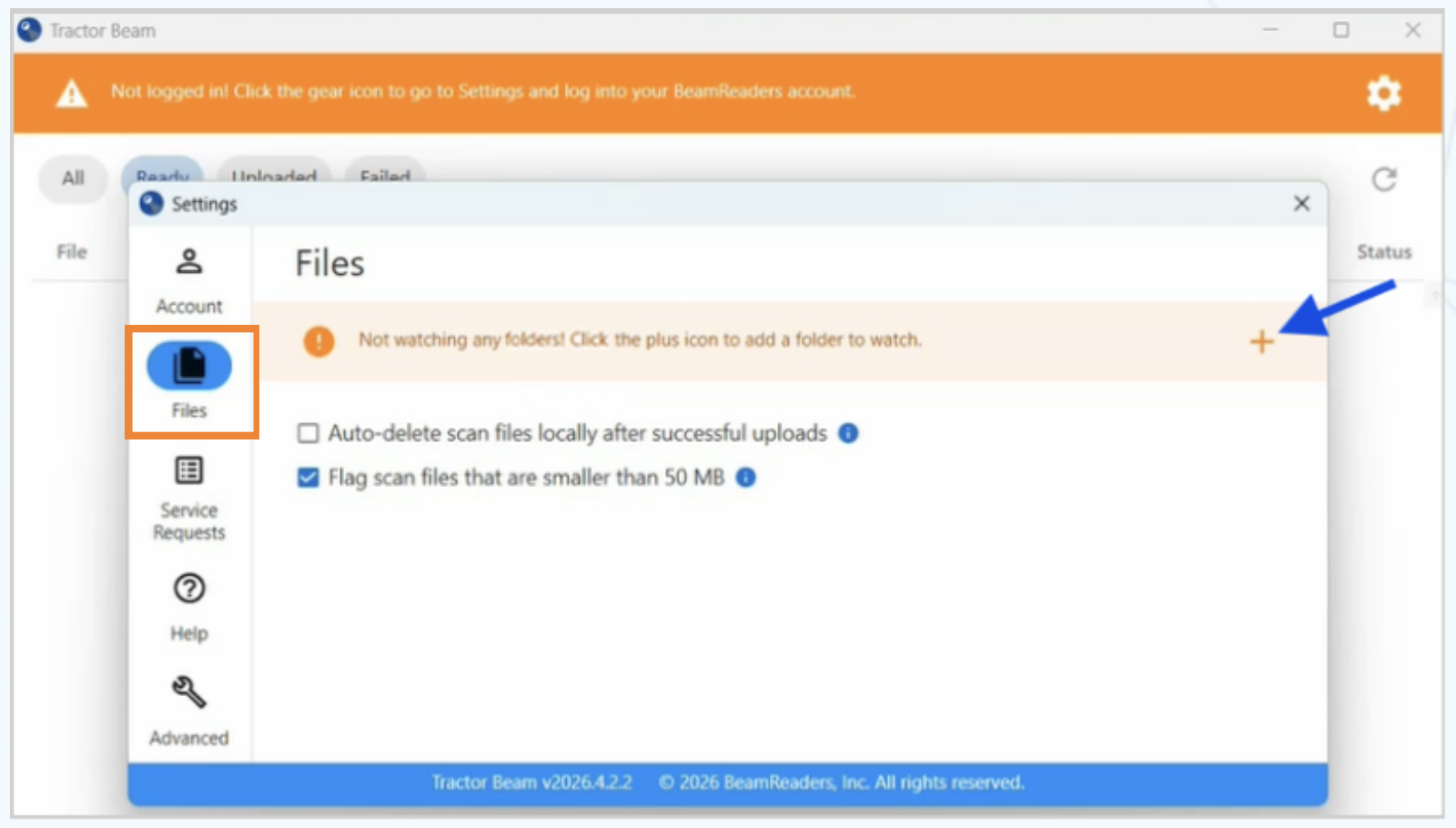
Step 3: Select Folder to “Watch” for Scans
- Select “Files” from the menu on the left.
- Click the + icon to add a folder to watch for scans.
- Select the folder where your scans are stored.
Optional Settings:
Auto-delete
For users who copy their scan files into a temporary, specific folder watched by Tractor Beam, auto-delete can be selected to delete those files on your local computer once they are successfully uploaded to BeamReaders. This is off by default.
- CAUTION: If the watched folder is where you permanently store your CBCTs, leave this box unchecked.
- Check this box ONLY if you are certain that your files are stored or backed up elsewhere, and they should be deleted from the your watched folder once uploaded to BeamReaders.
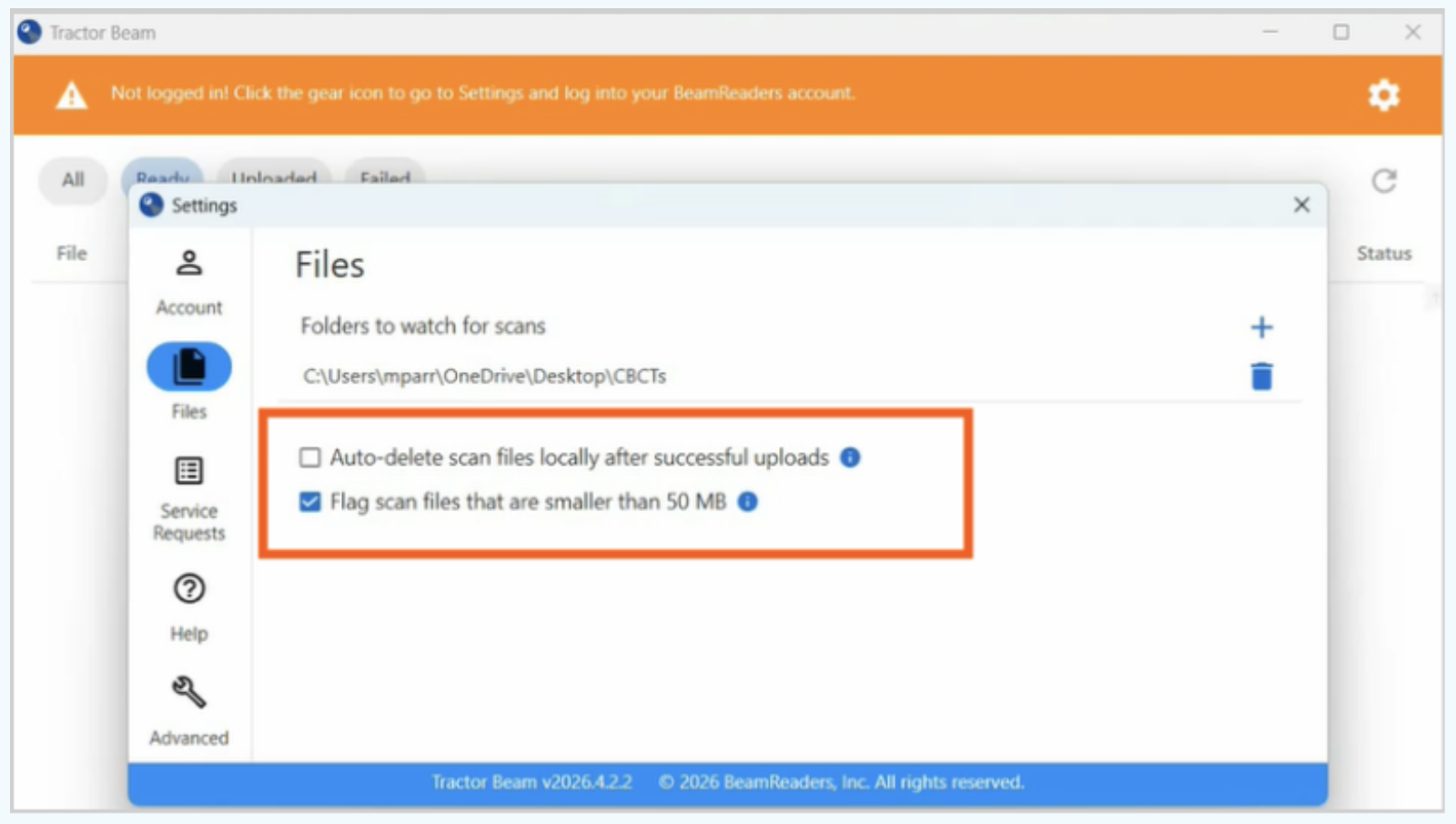
Small File Alert:
- Check this box to flag potentially corrupt or incomplete scans.
- Set the file size smaller than your usual scan size.
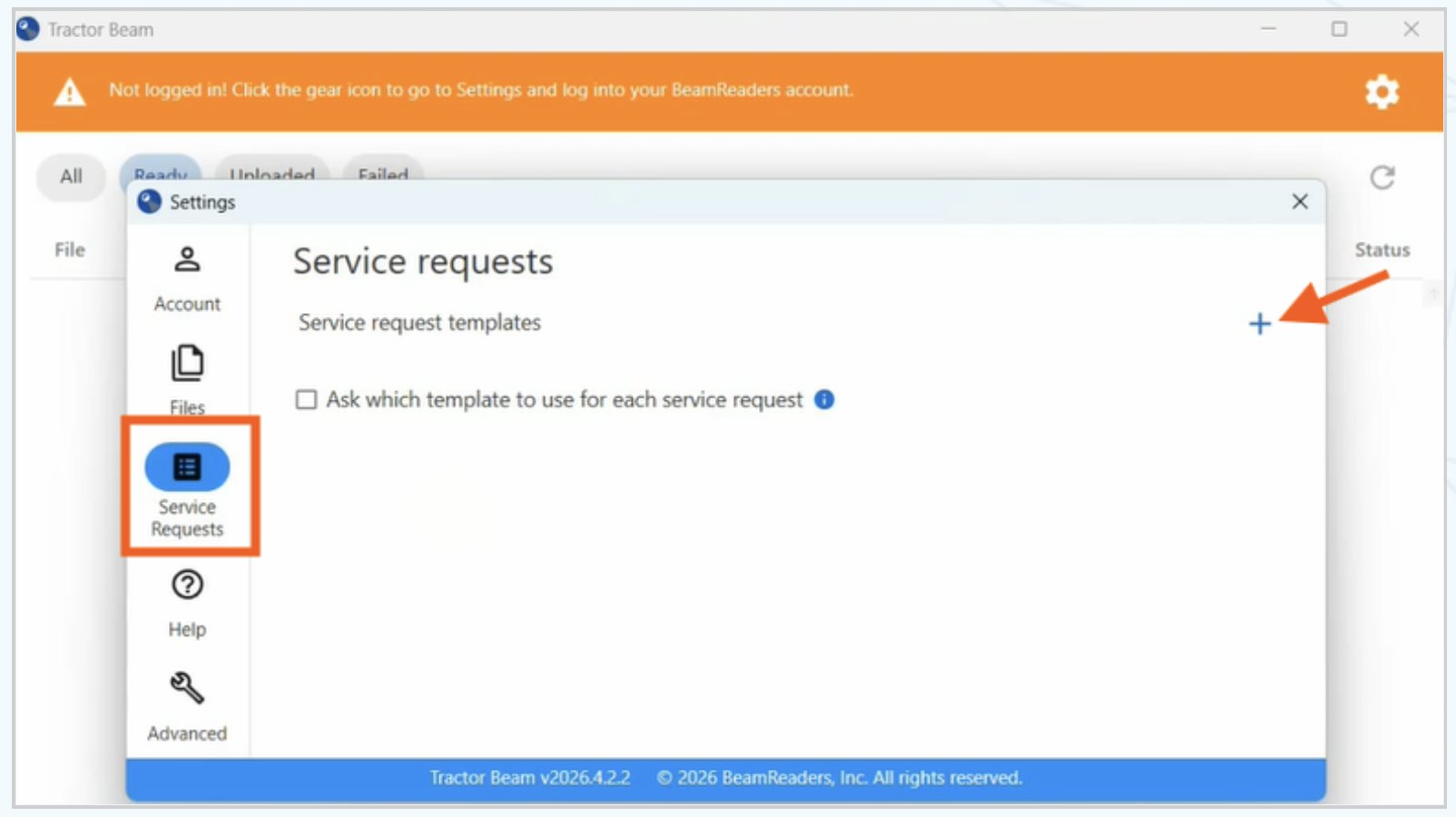
Configure Service Request Templates (Optional but highly recommended):
Select “Service Requests” from the menu on the left.
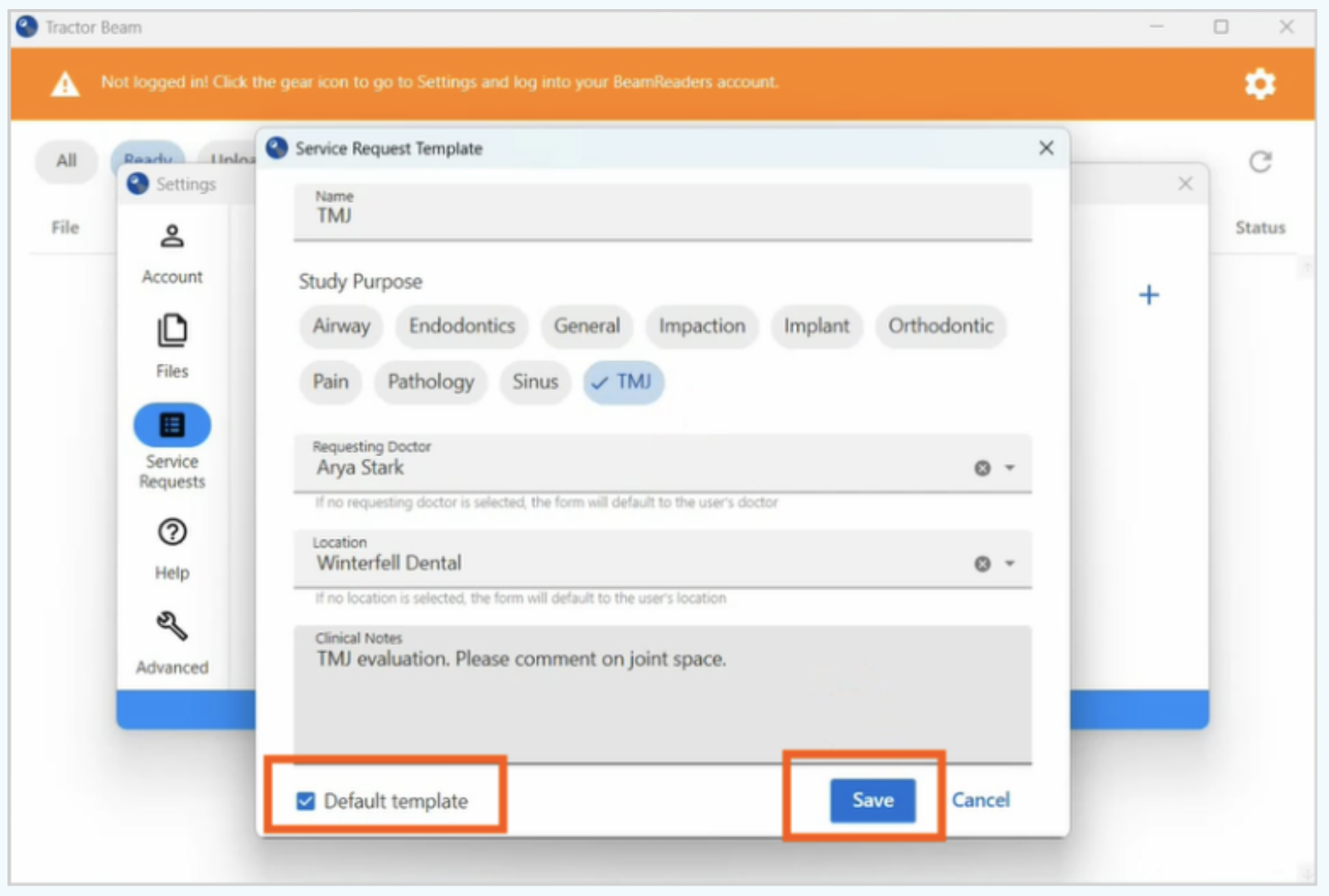
Click the + icon to create a template.
- Fill in details:
- Template Name
- Study purpose
- Requesting doctor
- Location
- Clinical notes if you have a standing request. Leave blank if these vary from patient to patient.
- Check “Default template” to set this as your default template.
- Click “Save” to save your template.
Template Tips:
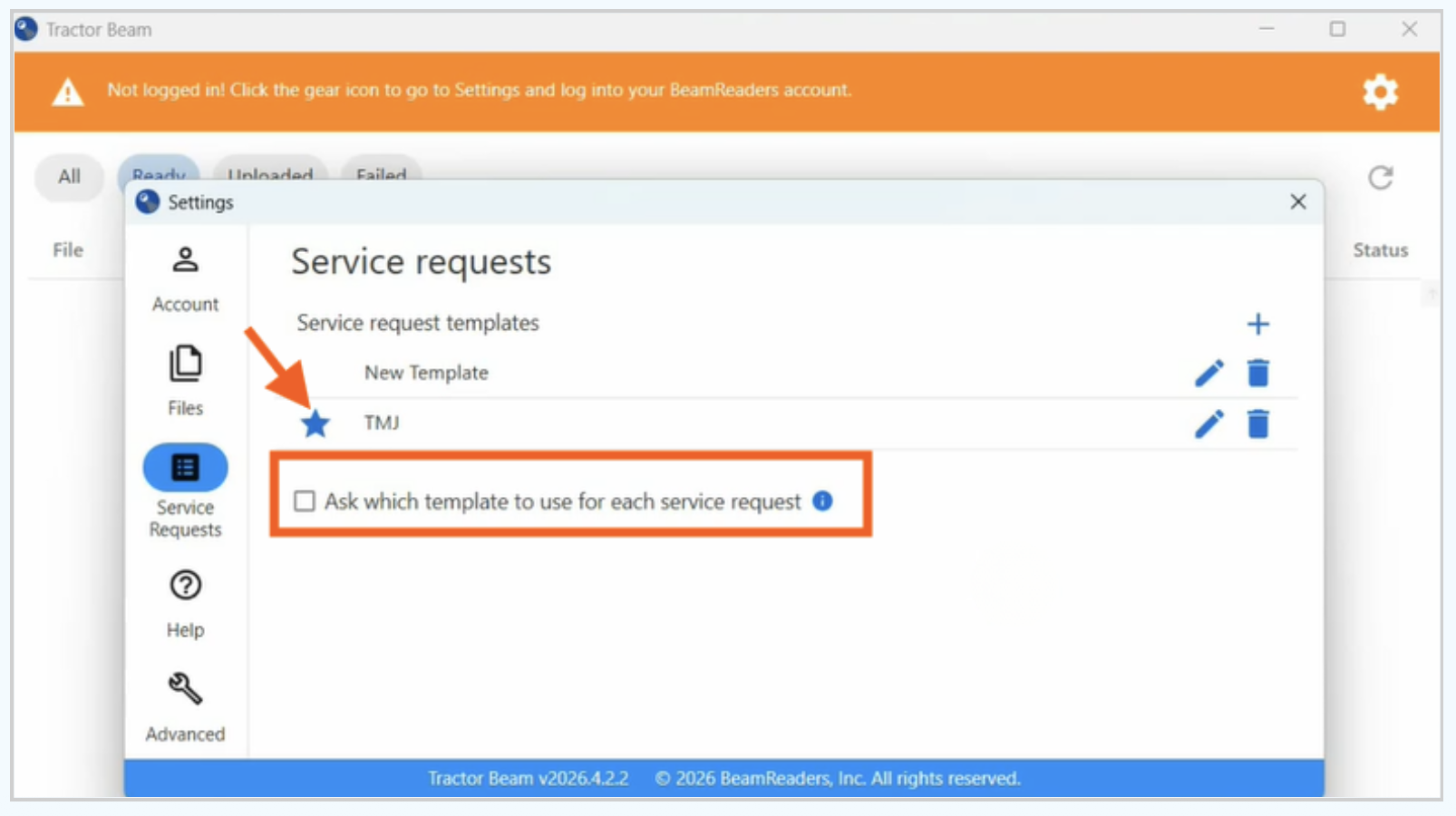
The star icon indicates the default template.
If you use multiple templates, “Ask which template before each service” should be checked
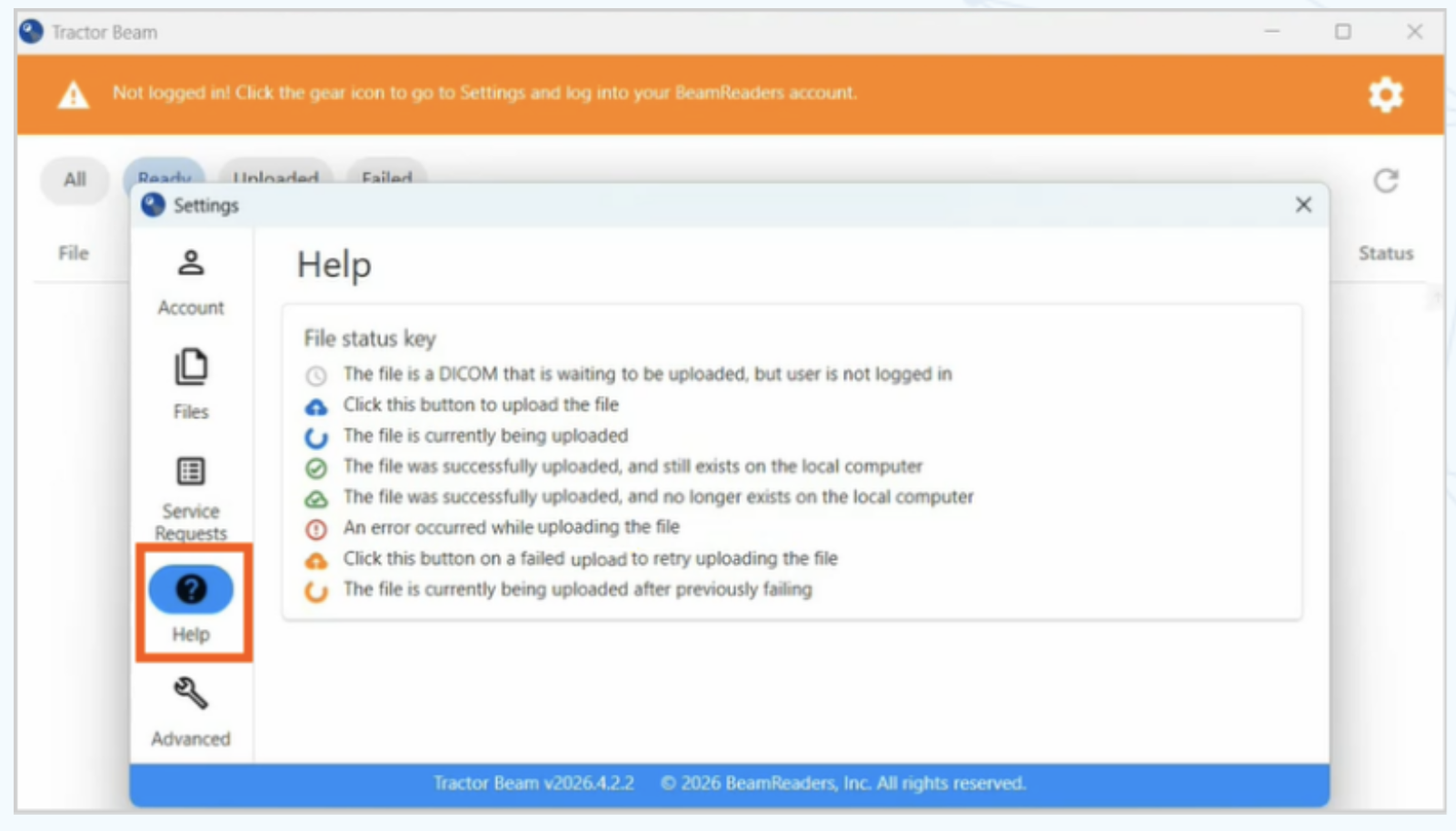
Understand Status Indicators:
Select “Help” from the menu on the left to view key for file status symbols.
Exiting the settings window:
Click the X in the upper right corner of the settings window to return to the main Tractor Beam Window.
Note: The Advanced tab should only be used under direct supervision of BeamReaders IT department to enable troubleshooting.
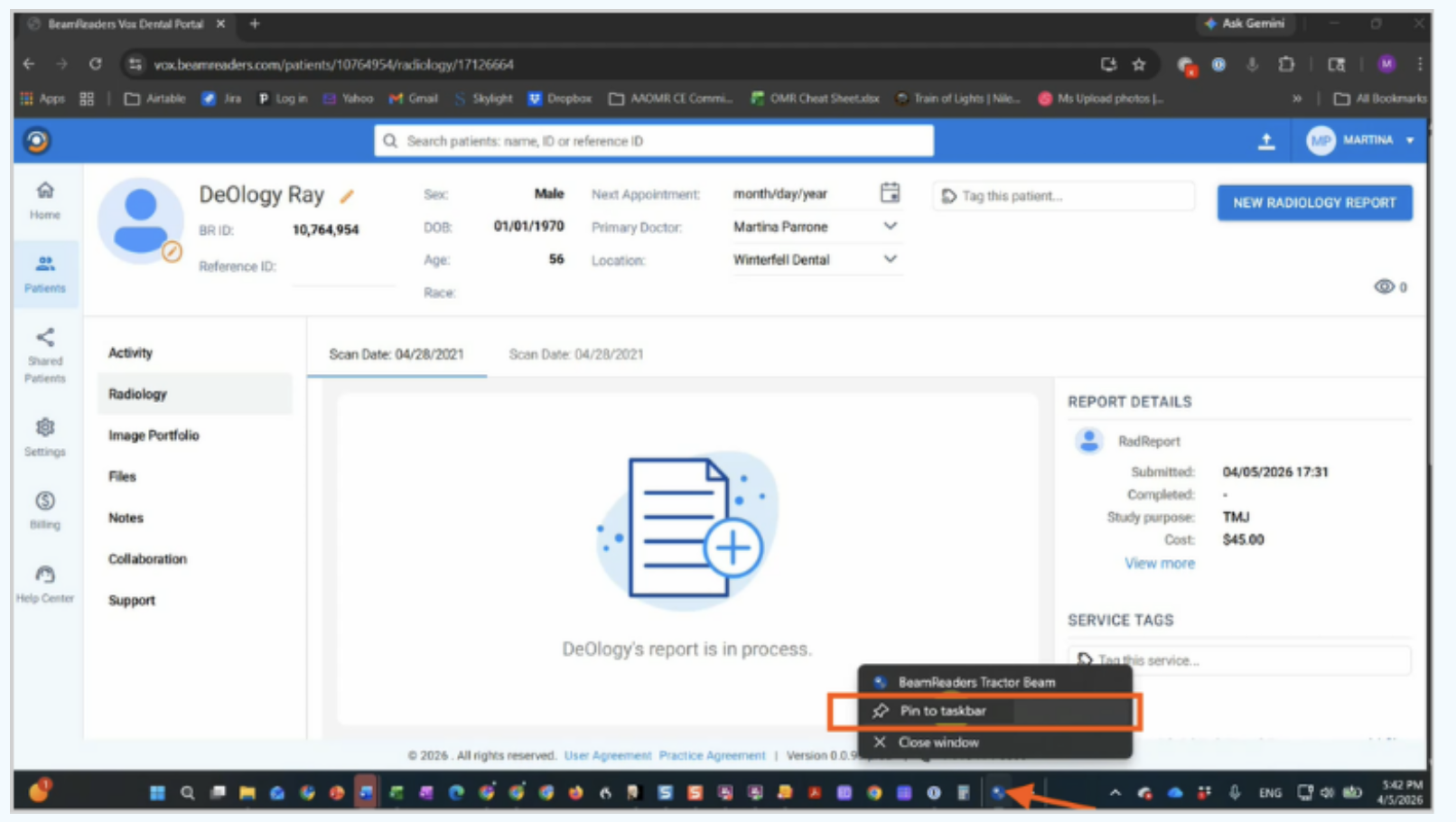
Pro Tip: Tractor Beam Quick Access
- Right-click the Tractor Beam icon in the taskbar.
- Click “Pin to taskbar. ”
Step 4: Start Uploading Scans
- The orange banner will turn blue once you are logged in and have selected at least one folder to be watched.
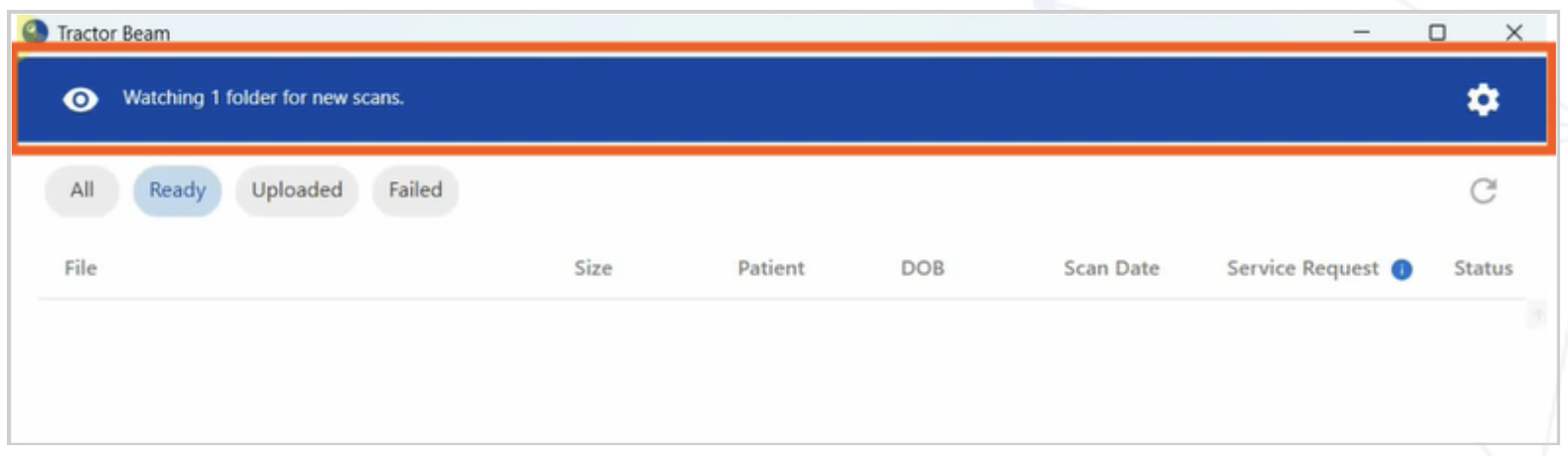
- Add (or drop) a scan into your watched folder. The scan will automatically appear in Tractor Beam in the “Ready” Tab.
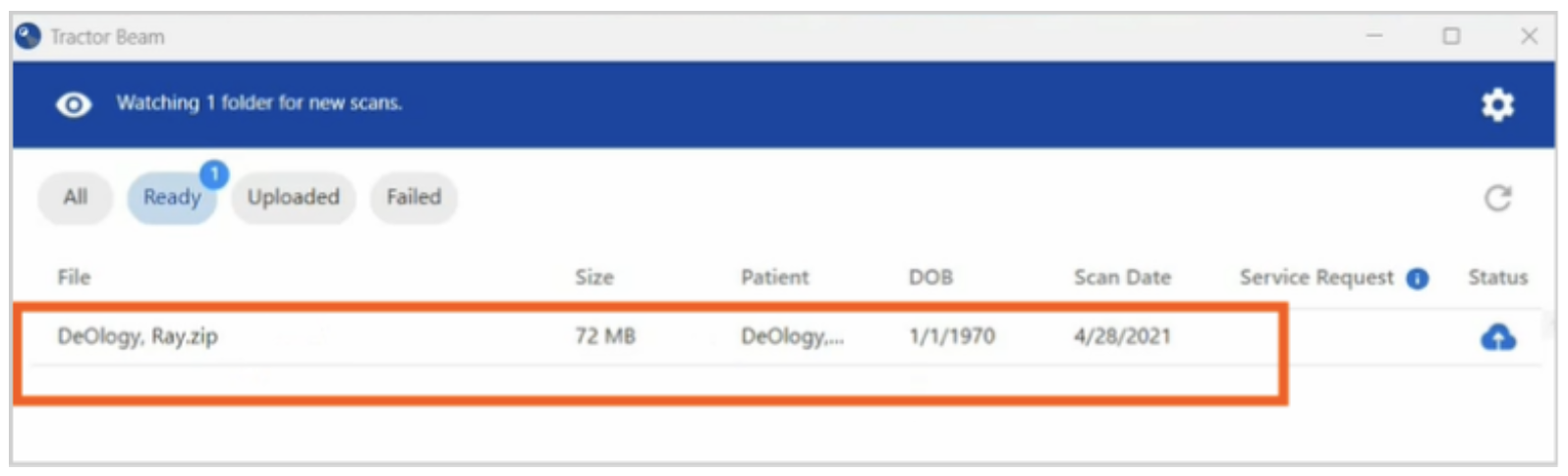
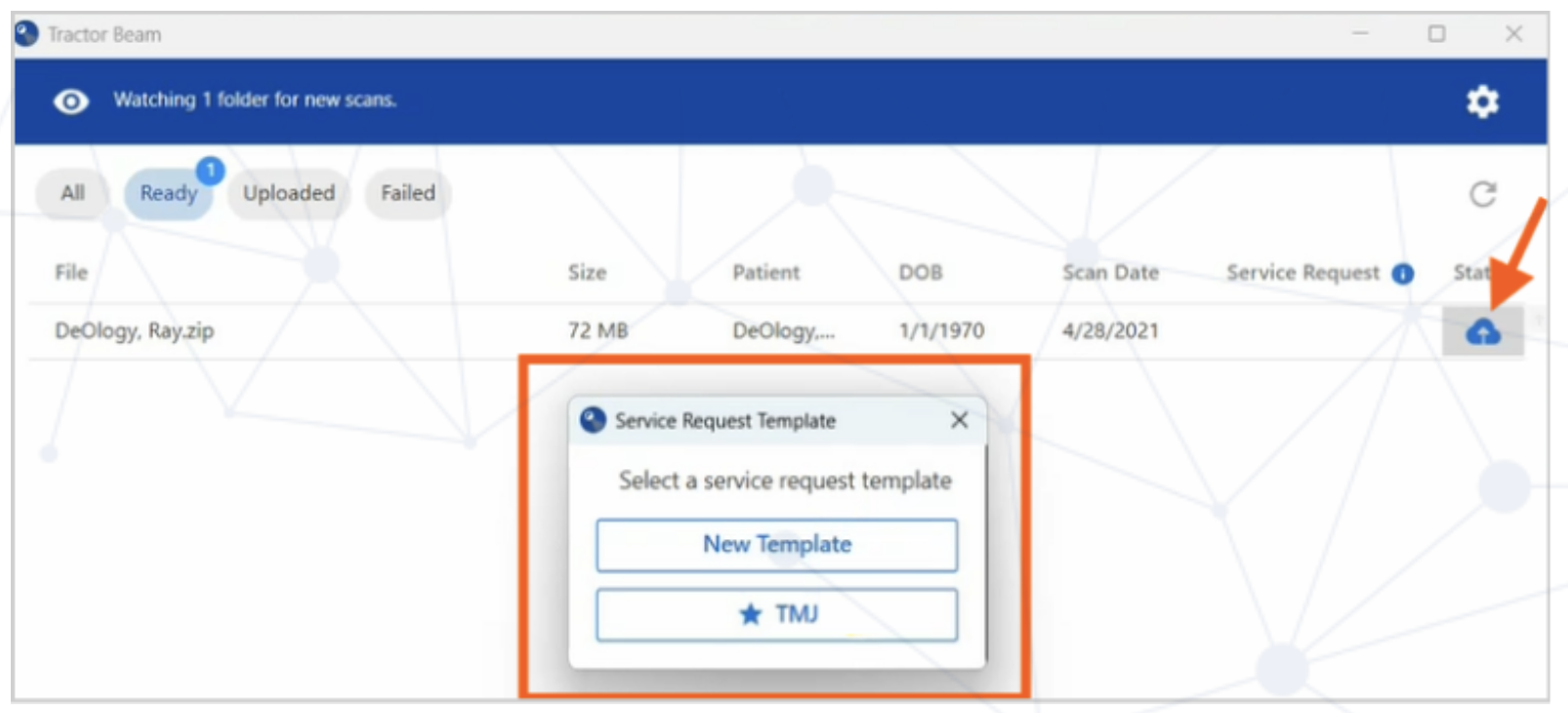
- Click the blue cloud icon to upload the scan to BeamReaders.
- If you set up multiple templates, a prompt appears to select the one you want.
Review & Confirm Scan Details
The system attaches the CBCT files & auto-fills the:
- Patient name
- Date of birth
- Sex
- Scan date
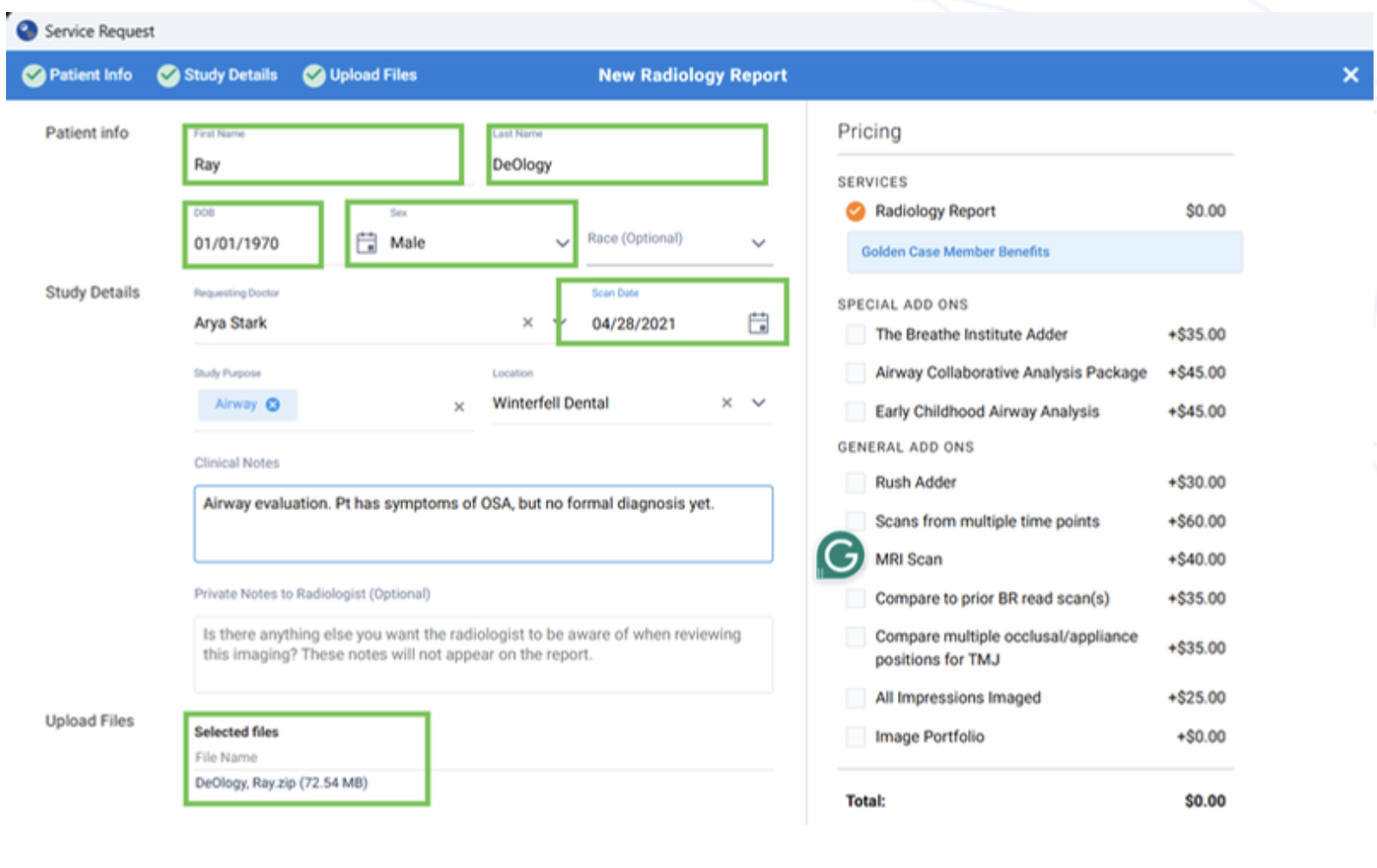
Template fields will auto-fill (if configured in step 3: "Configure Service Request Templates"):
- Study purpose
- Location
- Doctor
- Clinical Notes
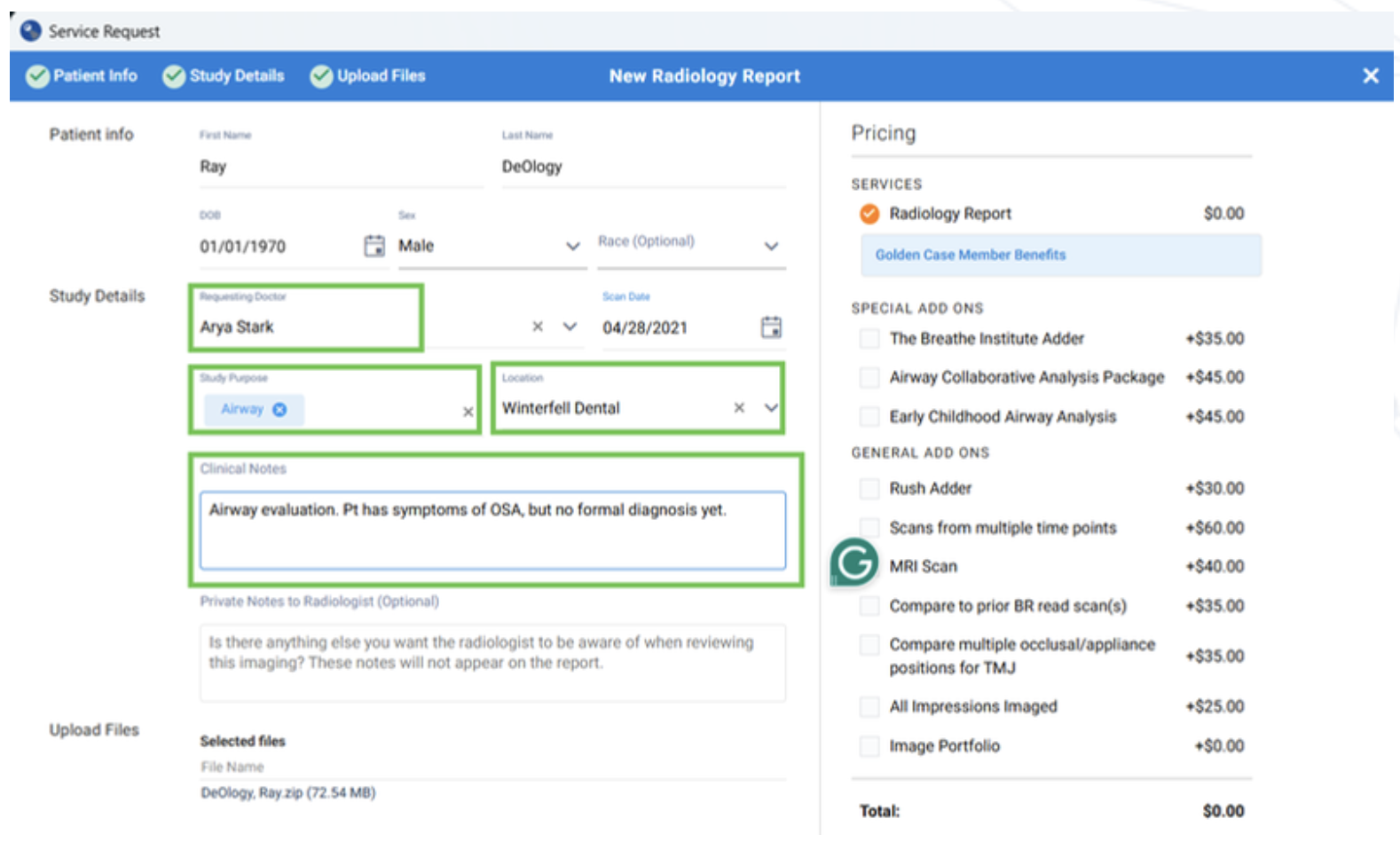
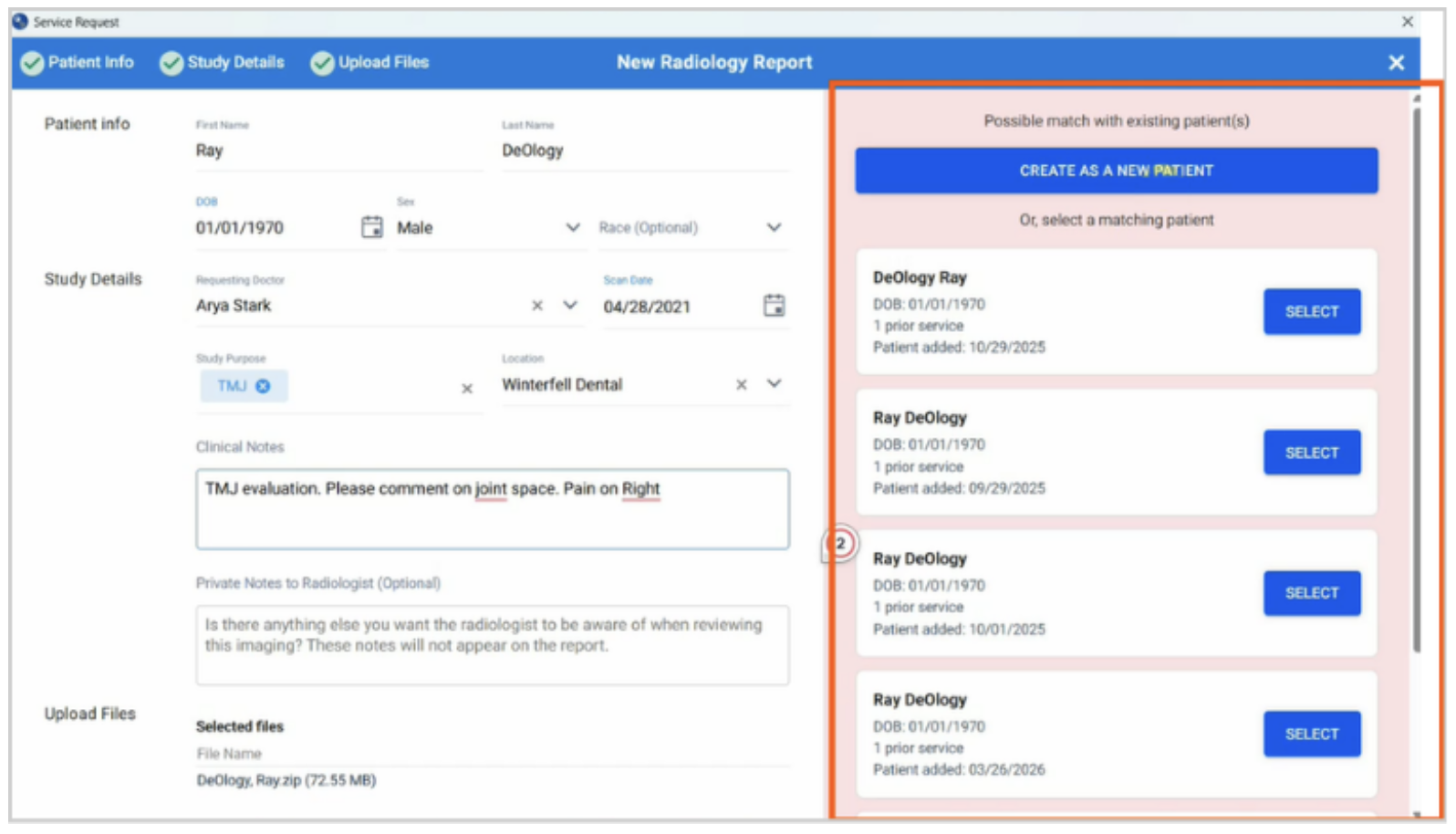
Check Matched Patients and Additional Services
If the "possible matching patient" prompt appears, select whether the scan is for:
- New patient, or
- Existing patient
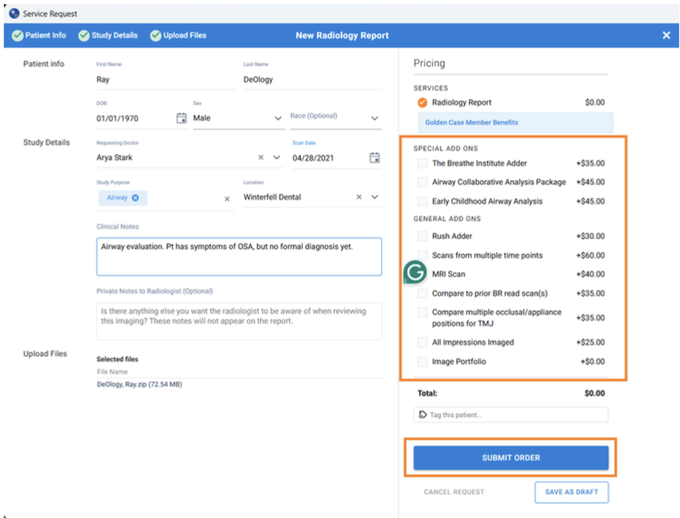
Add additional services as needed (Radiology Report is auto-selected)
Click "Submit Order. "
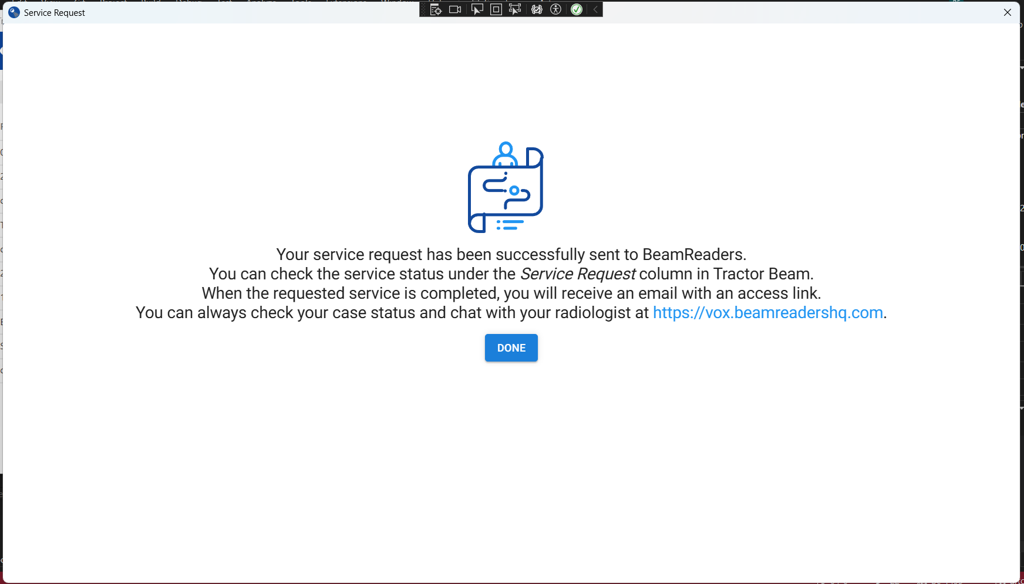
You'll see confirmation that your service request has been submitted.
Checking Case Status and Completed Services
You can see your submitted cases under the “All” or “Uploaded” tabs.
The status of your cases can be found in the “Service Request” column (this field updates approximately every hour).
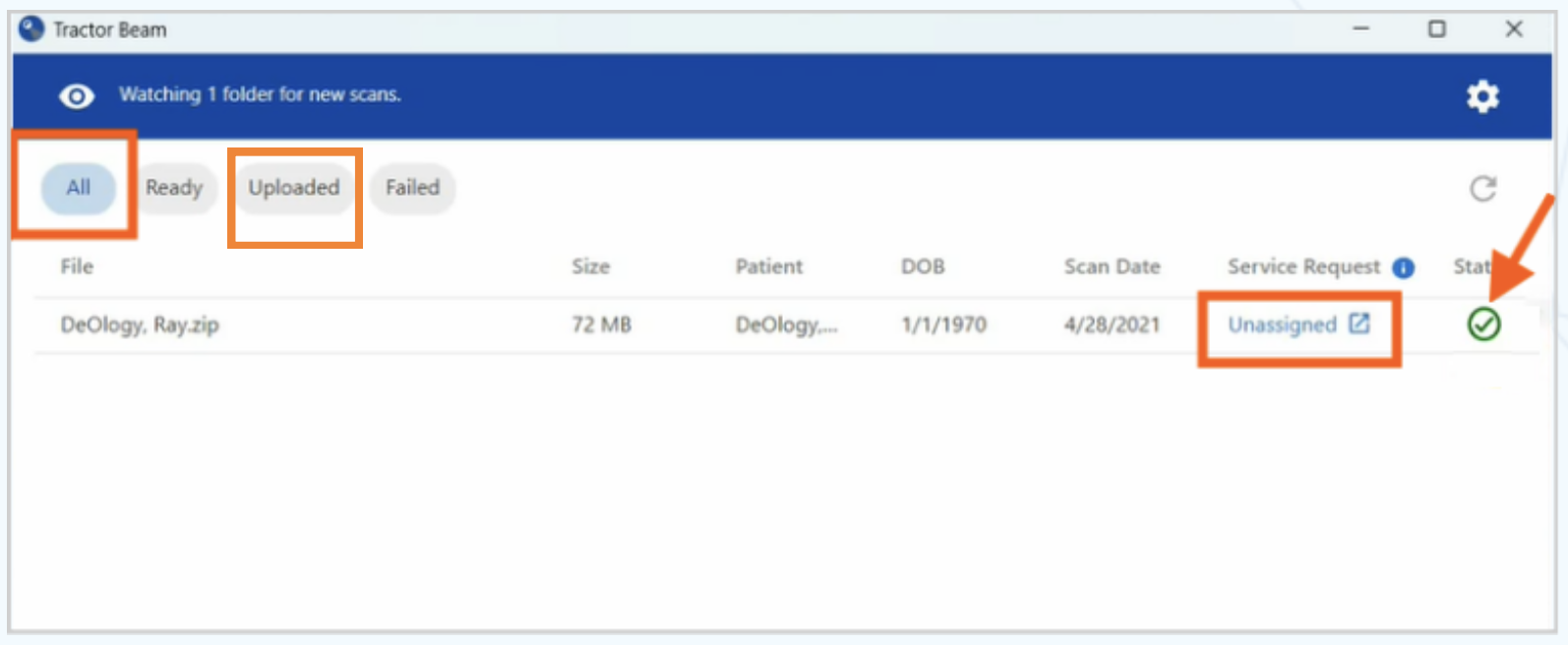
Clicking the blue status in the Service Request column to view the report/patient in the portal.
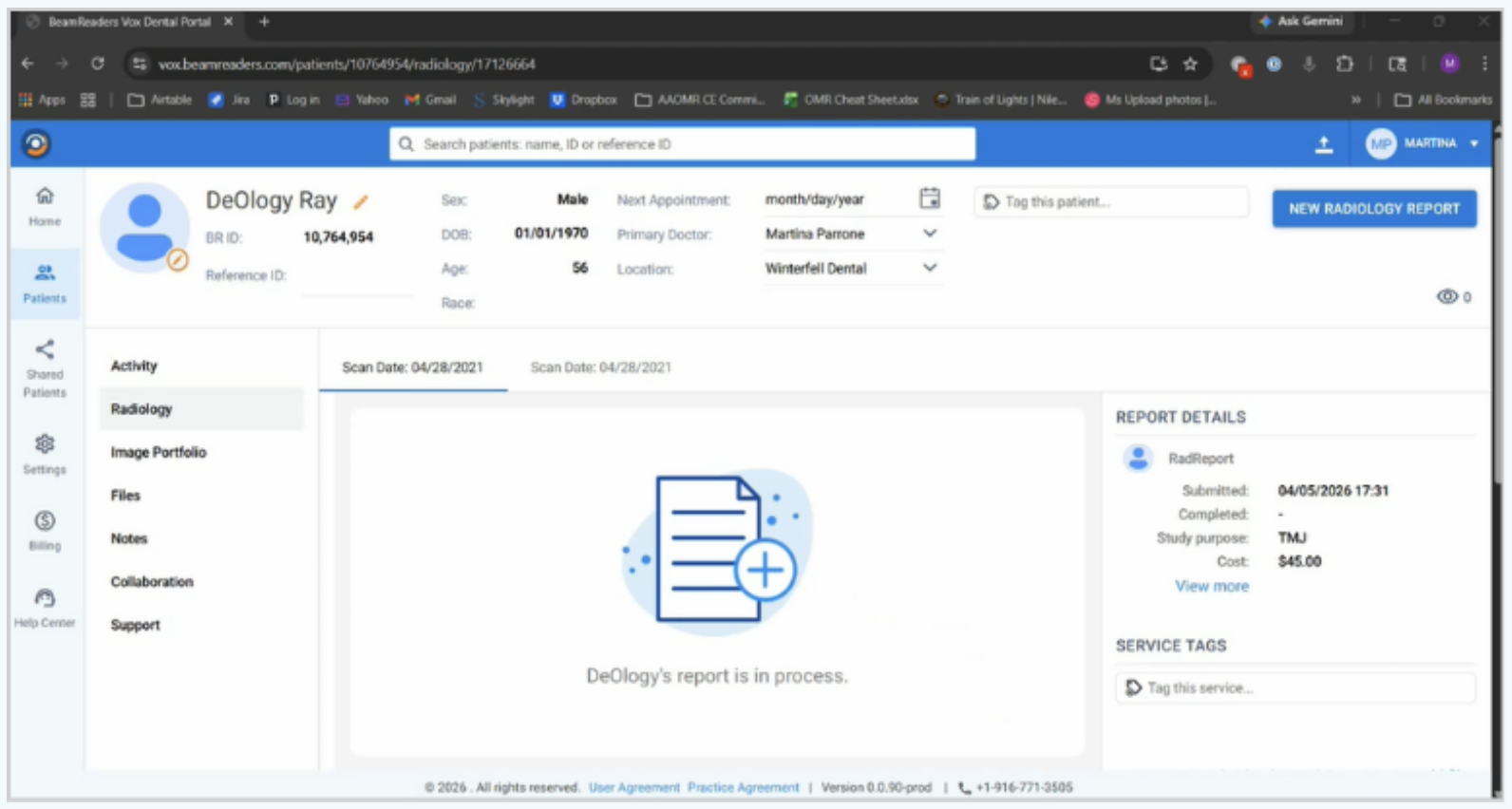
You're now ready to use Tractor Beam to upload cases at warp speed!
Additional Info & Troubleshooting
Installation and logging in
- Confirm you’re on Windows 10 or 11 with the latest updates installed (Settings > Windows Update > Check for updates). Please note that TractorBeam is a Windows-only app.
- Make sure your account can install software, or loop in your IT department if your computer is centrally managed.
- Ensure you have the latest version of TractorBeam downloaded.
- Have your BeamReaders login handy. The login window is separate from your browser, so saved passwords won’t autofill. Reset your password ahead of time if you’re not sure of it.
- Confirm you have a stable internet connection. TractorBeam needs one to upload scans.
Installation
- If the installer is blocked, right-click it and choose "Run as administrator," or have your IT department install it.
- TractorBeam shouldn’t be flagged by antivirus software. If yours blocks it anyway, add an exception for the TractorBeam application.
- After installing, TractorBeam should open automatically. If it doesn’t, check your Start menu or system tray.
Logging in
- Use the same email and password you use on the BeamReaders VoxDental portal.
- The login screen is a separate pop-up window and won’t pull from your browser’s saved passwords.
- Still see an orange banner after logging in? You also need to select a folder to watch before it turns blue.
Watched folders
- Don’t point TractorBeam at your entire historical scan archive. Folders containing archives may cause performance degradation. Create a new folder and use it for scans going forward instead.
- Ensure folders aren't nested in subfolders, and that all your files are in the same folder.
- If you're storing files on a network drive, ensure it’s mounted and accessible before TractorBeam starts, or it may not detect new files.
- Auto-delete is off by default. Only turn it on if you’re certain your scans are stored or backed up elsewhere.
Uploading & submitting
- If your scan isn't showing up in TractorBeam, confirm it landed directly in the watched folder (not a subfolder) and that it’s a DICOM file.
- If name or date of birth are missing or unexpected, your imaging software may not be including it in the file. Please fill in the missing data manually.
- If the name looks reversed (showing last name and first name in the wrong fields), please correct this on your submissions and let us know which software you're using so we can plan for future improvements.
Checking Status
- TractorBeam doesn't send its own notifications. You'll still get your standard BeamReaders email when a report is ready. You can also manually check the Service Request column which updates once per hour.
Keeping your data safe
- This is beta software. Always keep a backup of your scan files outside the watched folder, especially if auto-delete is on.
- Don’t use the Advanced tab unless BeamReaders support directs you there.
Stuck or have feedback?
Send us what you’re seeing (a screenshot helps), along with any info, like operating system and imaging software, at brsupport@beamreaders.com.